KeysCams.com
Select a cam to view
----------
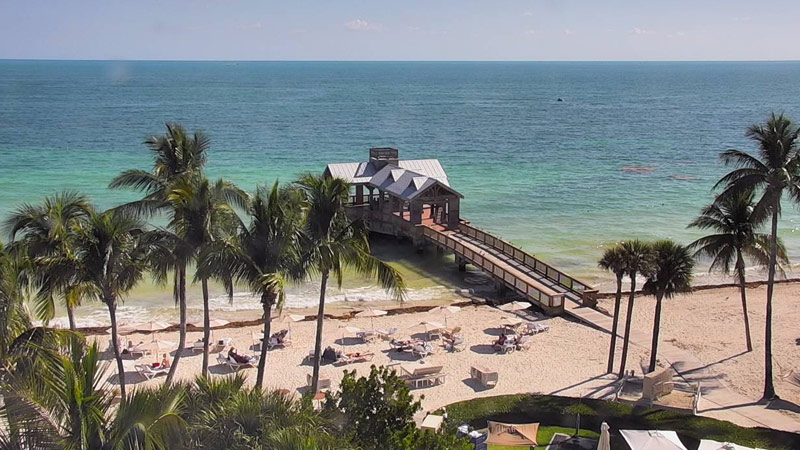
A Curio Collection by Hilton™, The Reach Key West
Beachside Resort & Residences
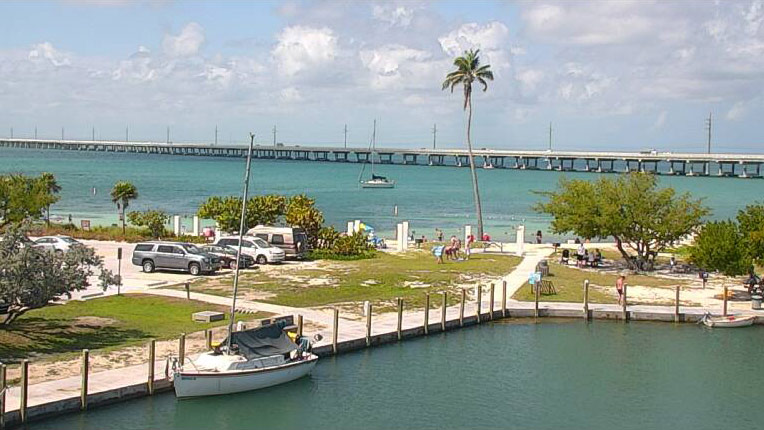
Boyd's Campground
Cheeca Lodge Resort
College of the Florida Keys
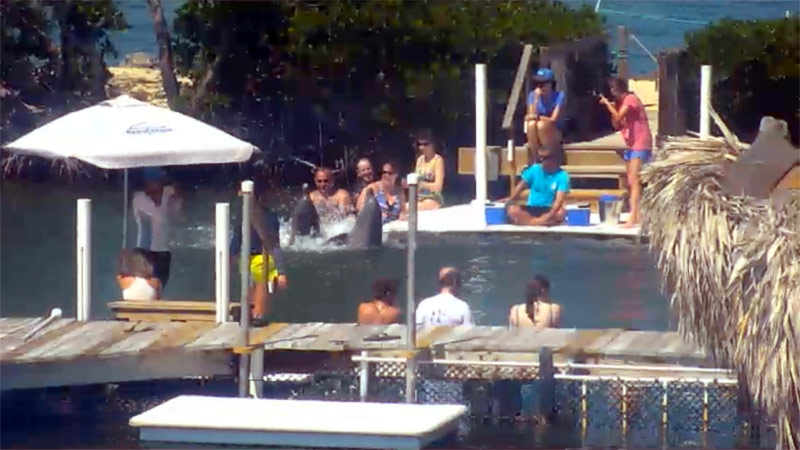
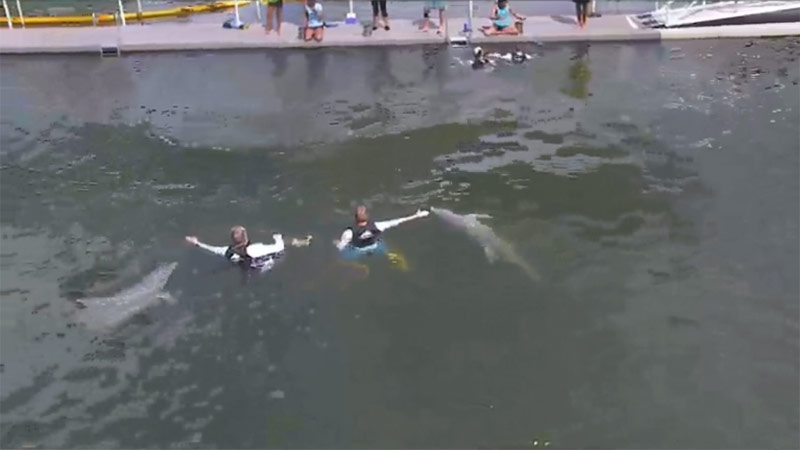
Dolphin Research Center
Dolphins Plus Bayside
Fort Zachary Taylor Historic State Park
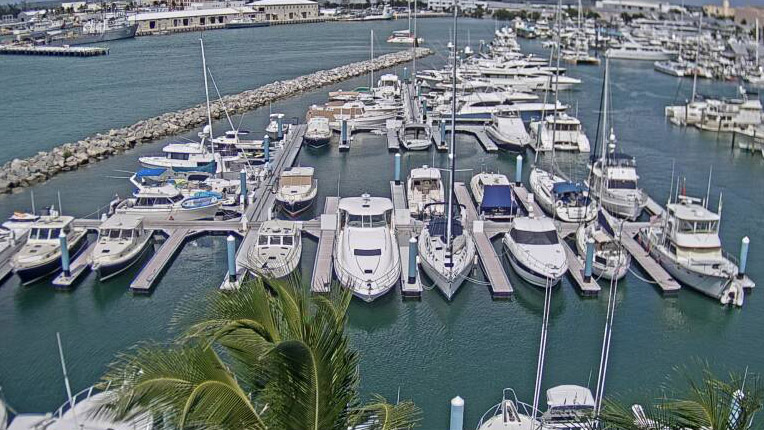
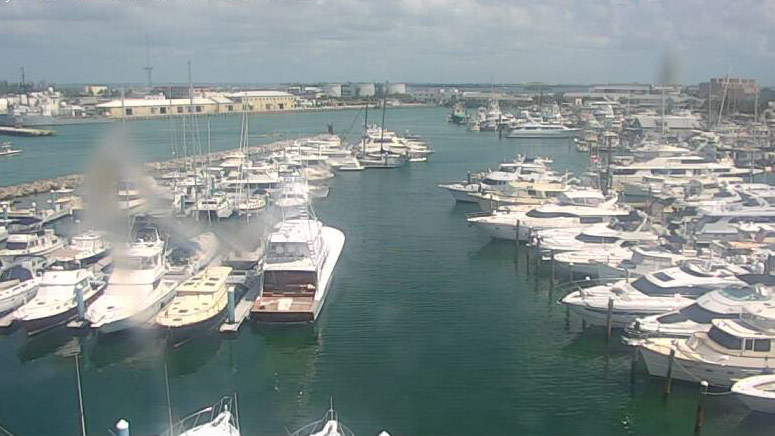
Galleon Marina
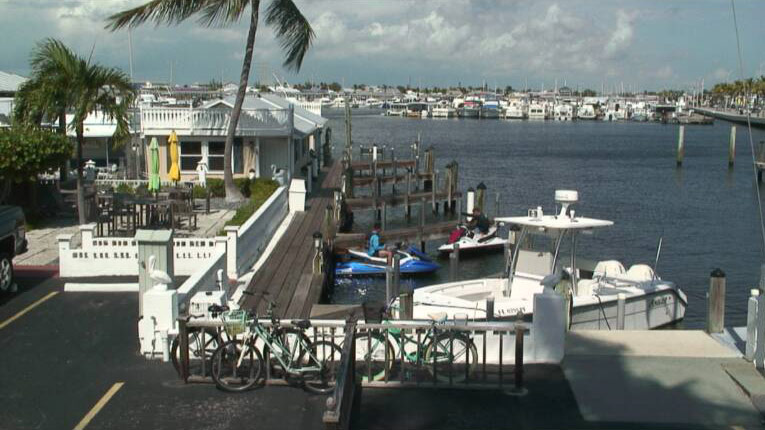
Harborside Motel & Marina
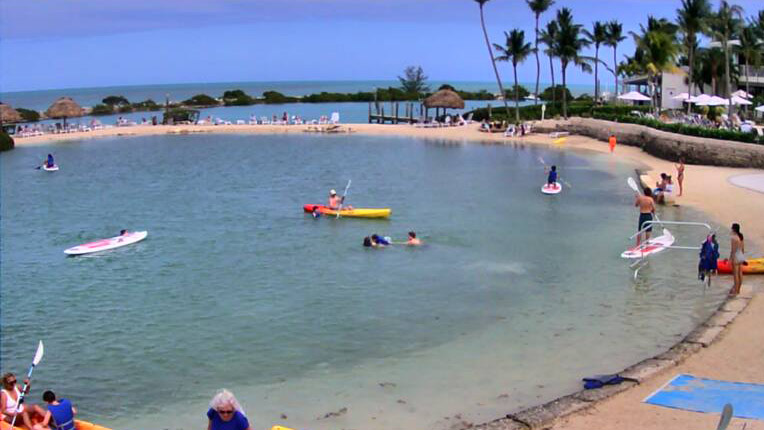
Hawks Cay Resort
Hyatt Centric Key West Resort & Spa
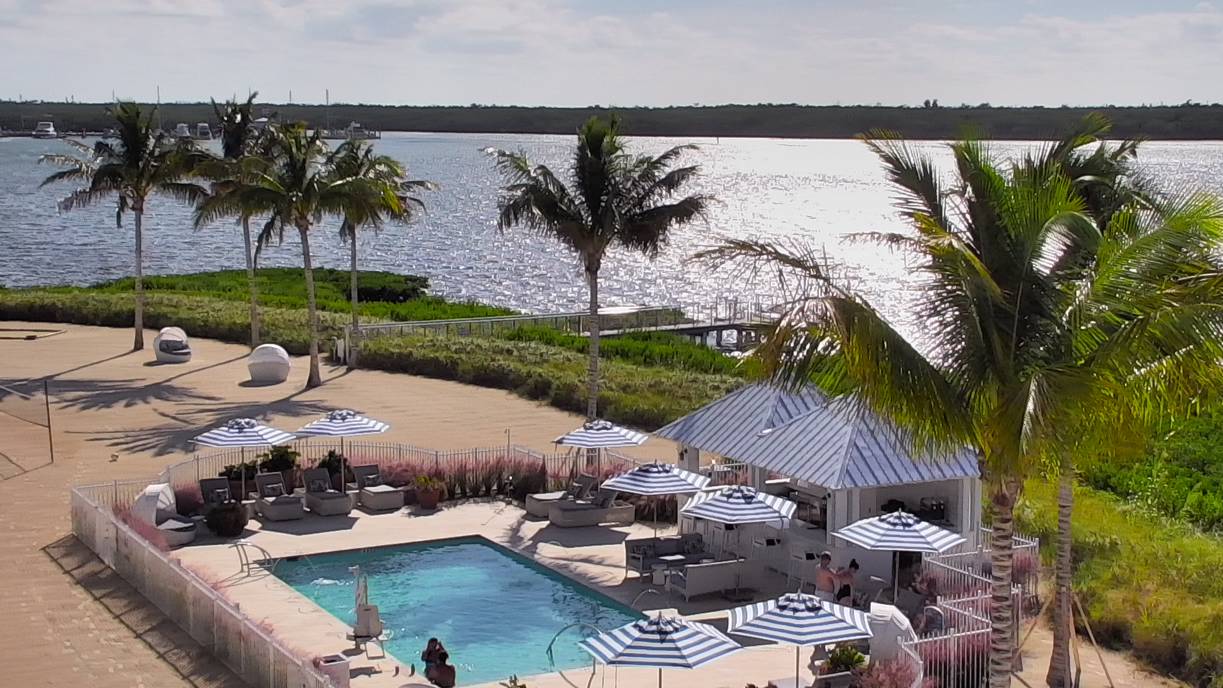
Isla Bella Beach Resort
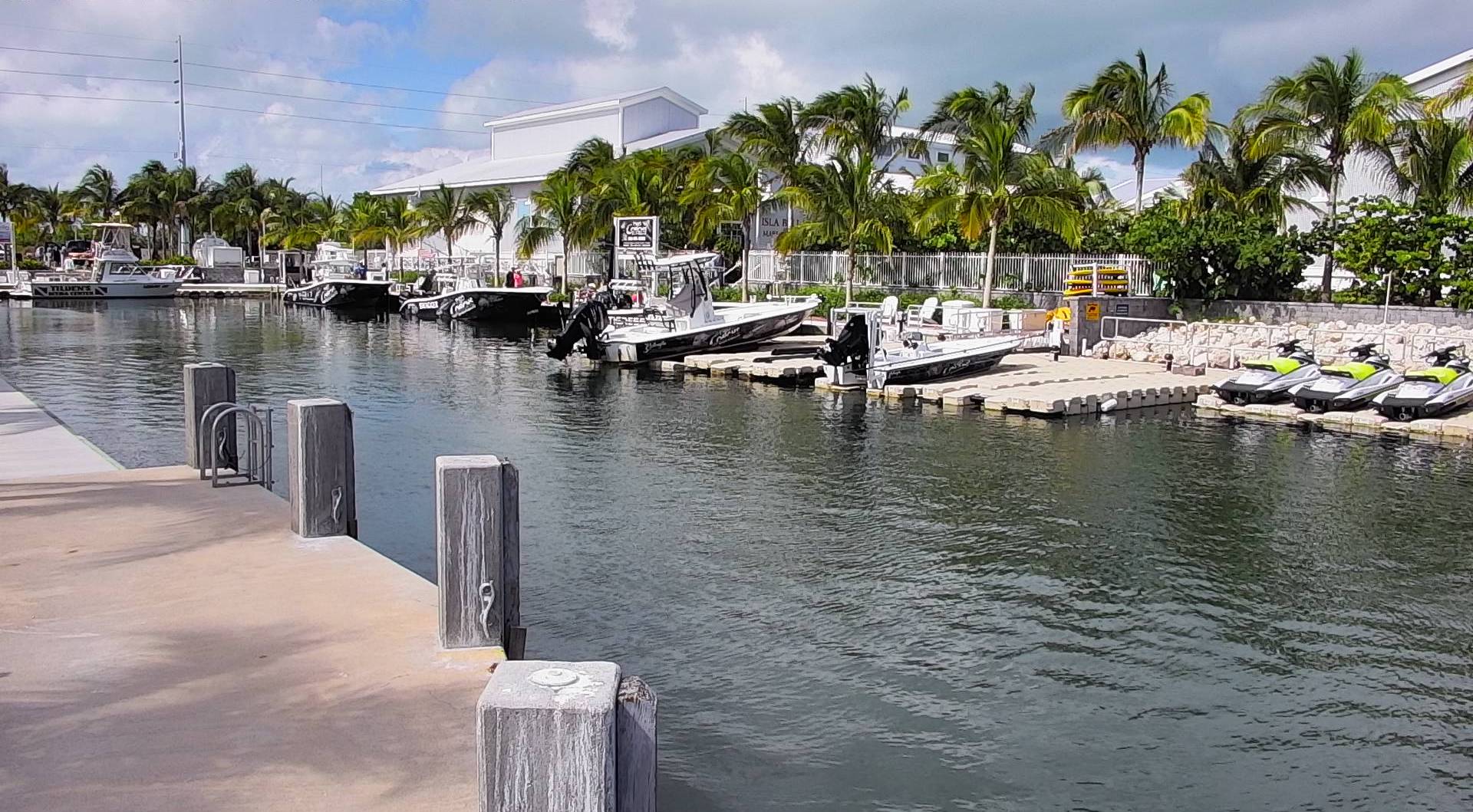
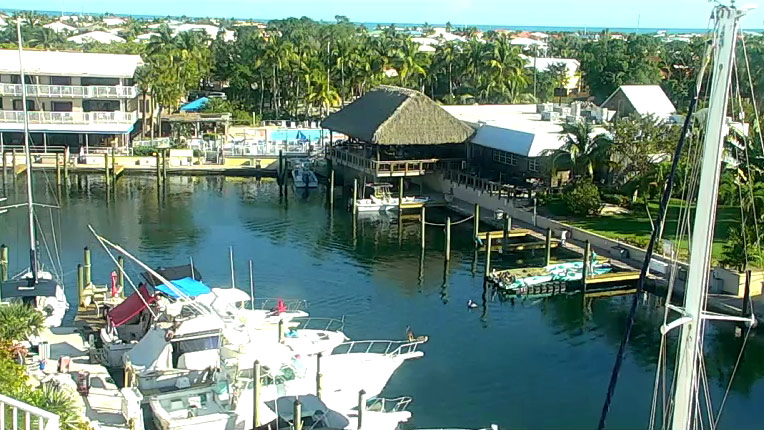
Isla Bella Beach Resort: Marina Cam
Isla Bella Beach Resort: Marina Underwater Cam
Islamorada Cam
Island 106.9: Live Streaming Audio
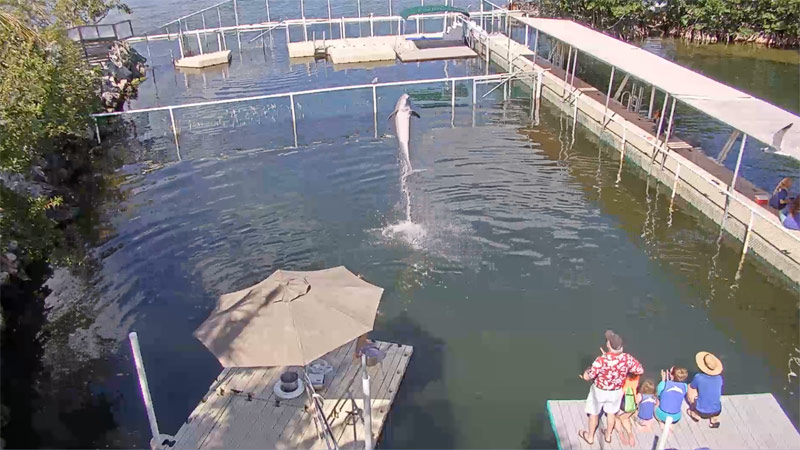
Island Dolphin Care
Key Largo Cam
Key Largo North: Anchorage
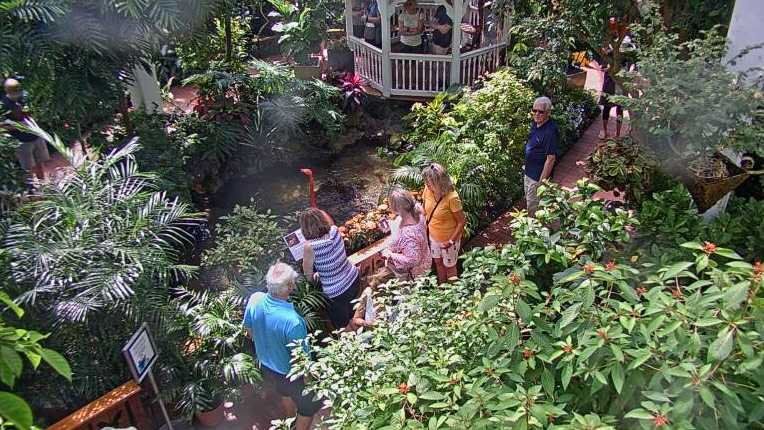
Key West Butterfly
Key West Cam
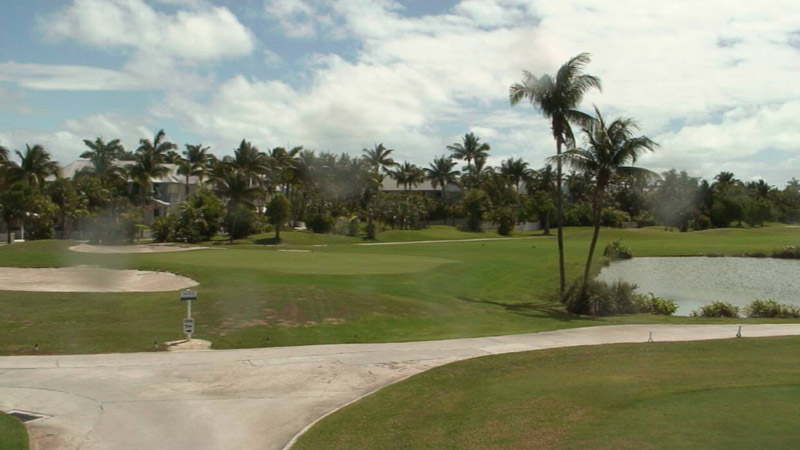
Key West Golf Club
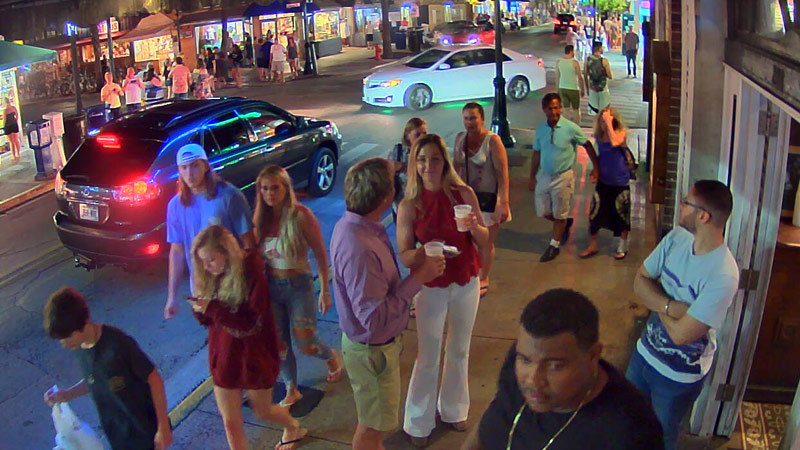
Live Duval Street: Cam 1
Live Duval Street: Cam 2
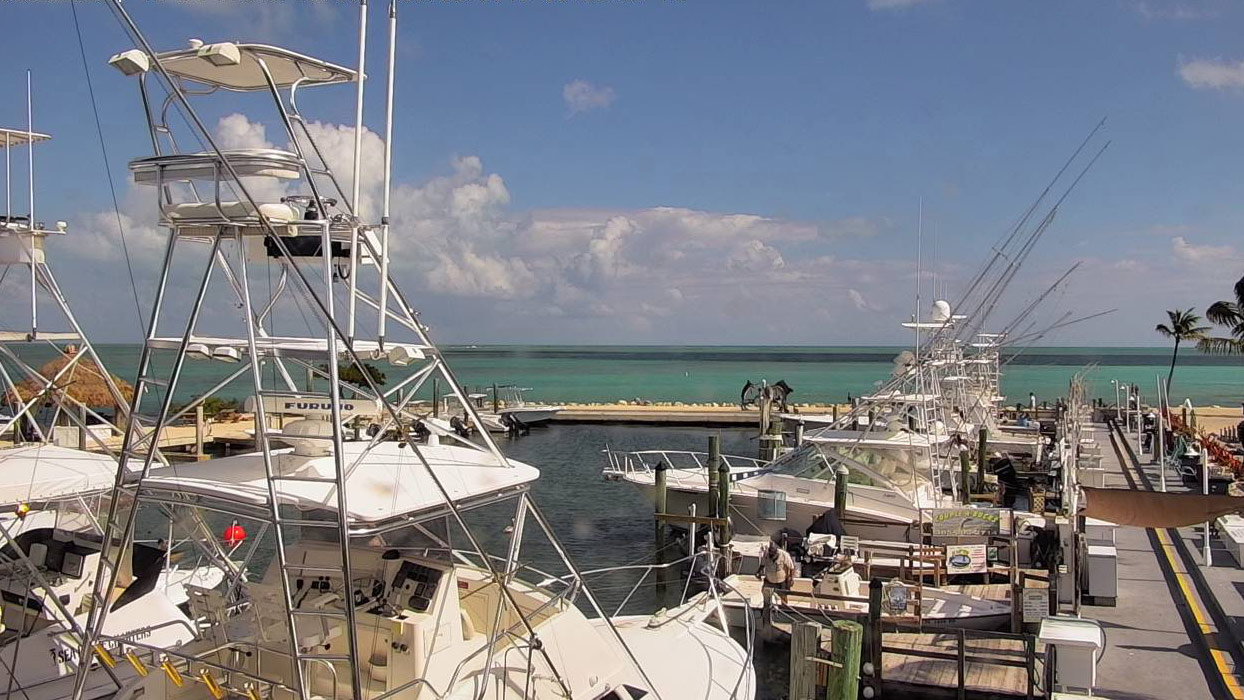
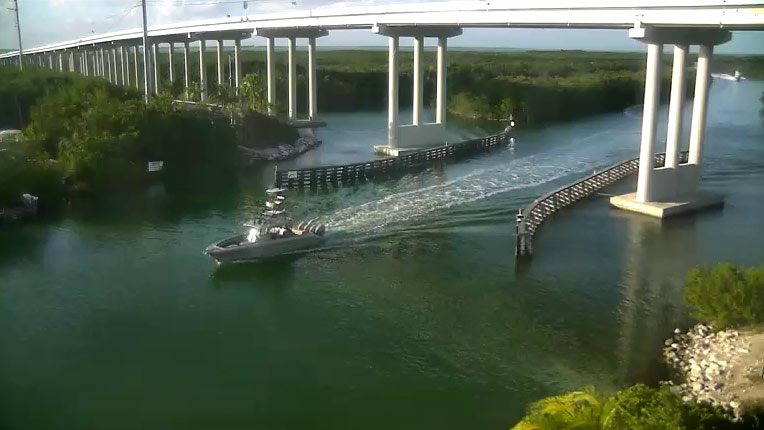
Lower Keys Cam
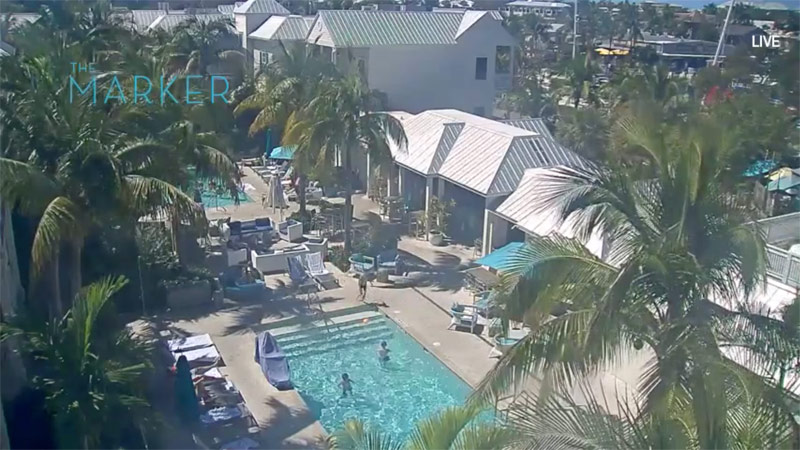
Marker Resort
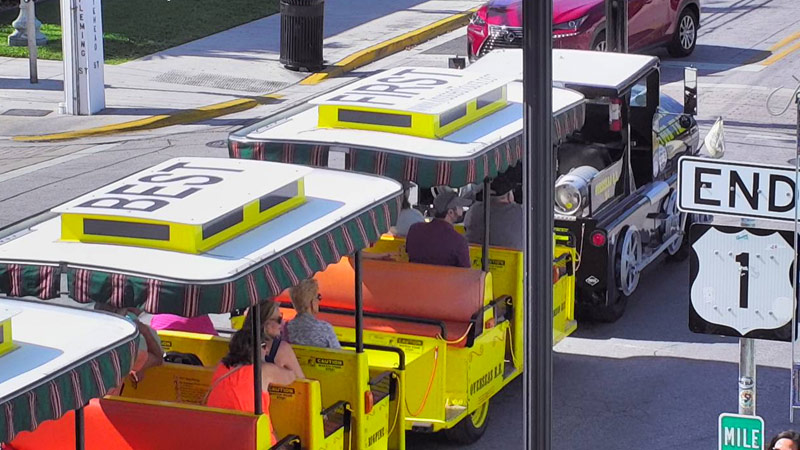
Mile Marker 0 - Vacation Homes of Key West
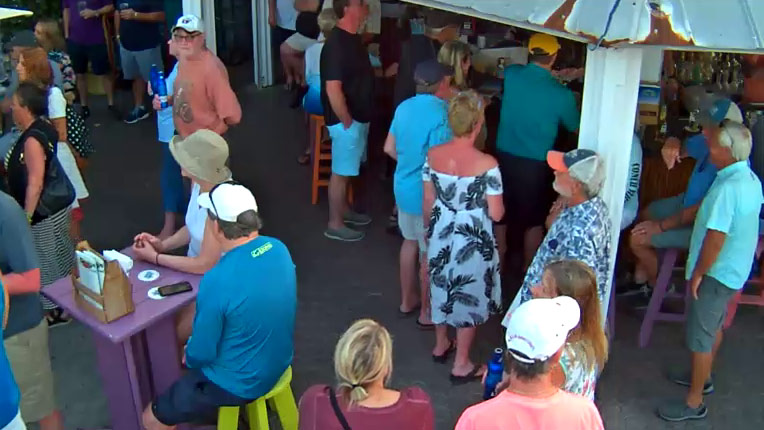
Ocean Key Resort: Bar Cam
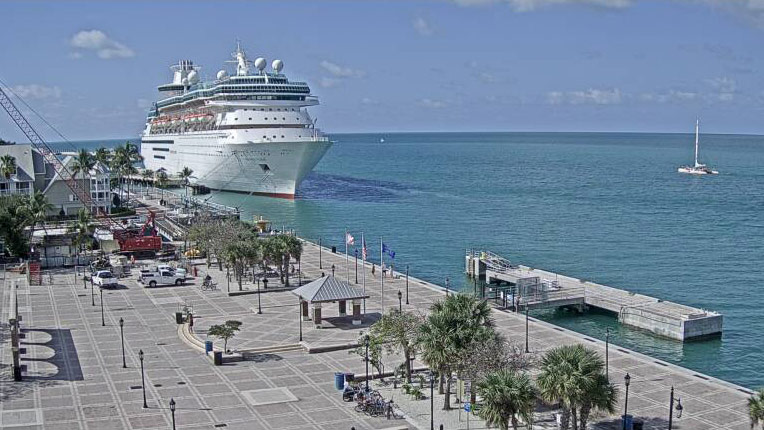
Ocean Key Resort: Mallory Square
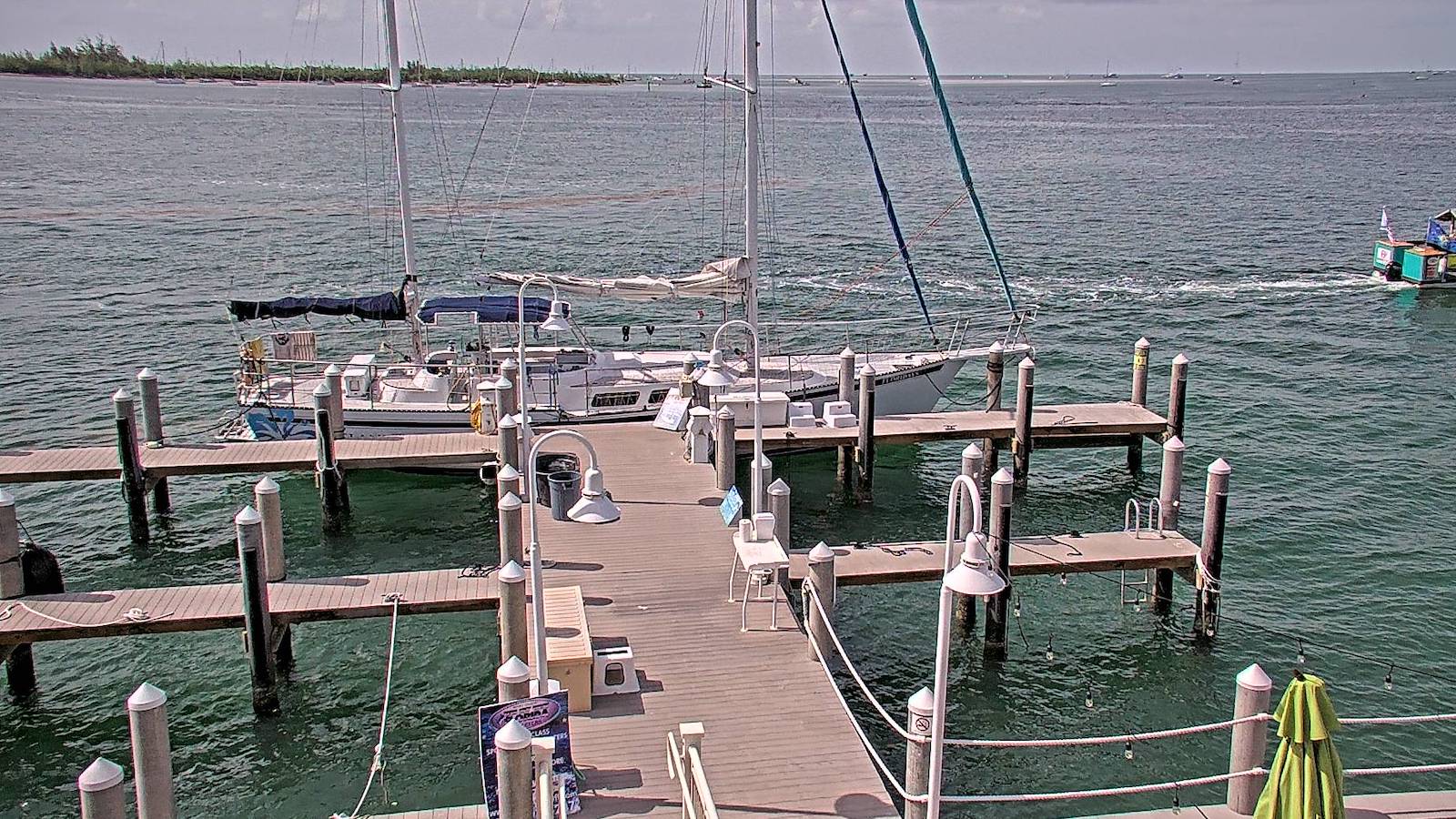
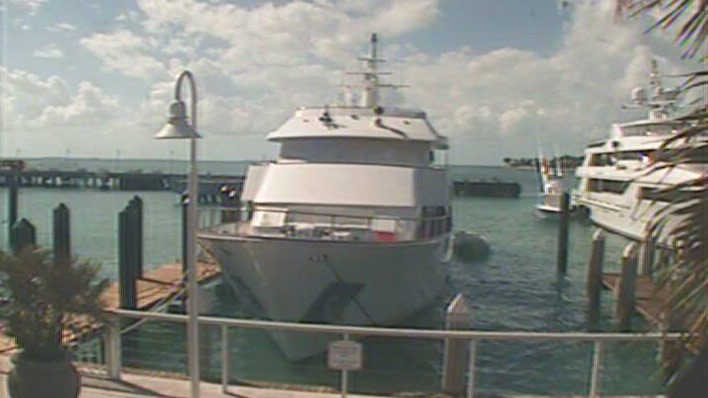
Ocean Key Resort: Pier Cam
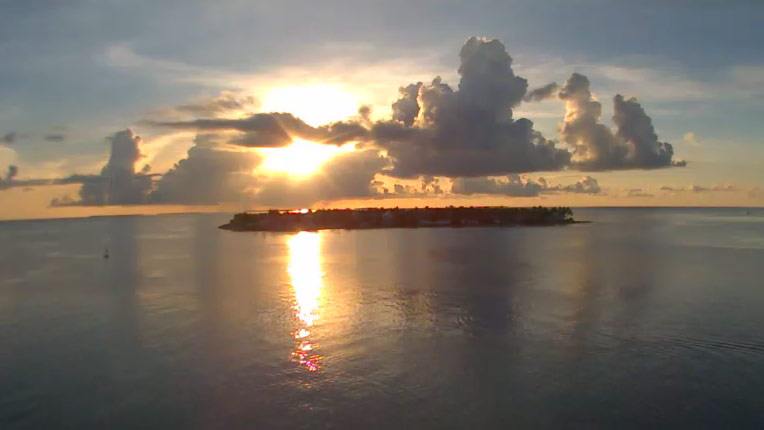
Ocean Key Resort: Sunset Cam
Oceans Edge Key West Hotel & Marina
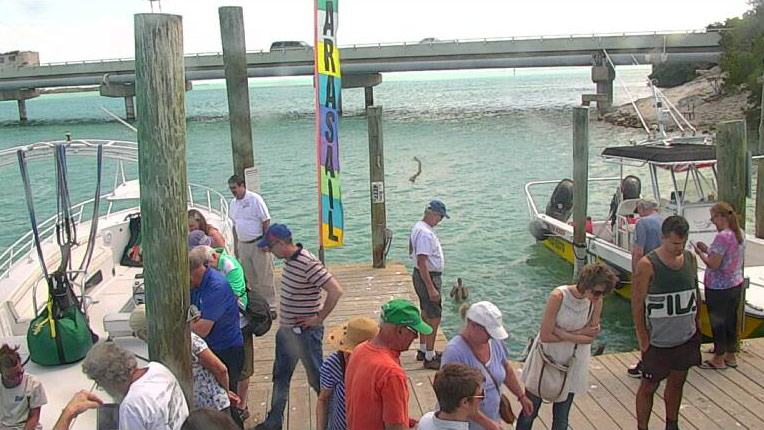
Robbie’s Tarpon Feeding Cam
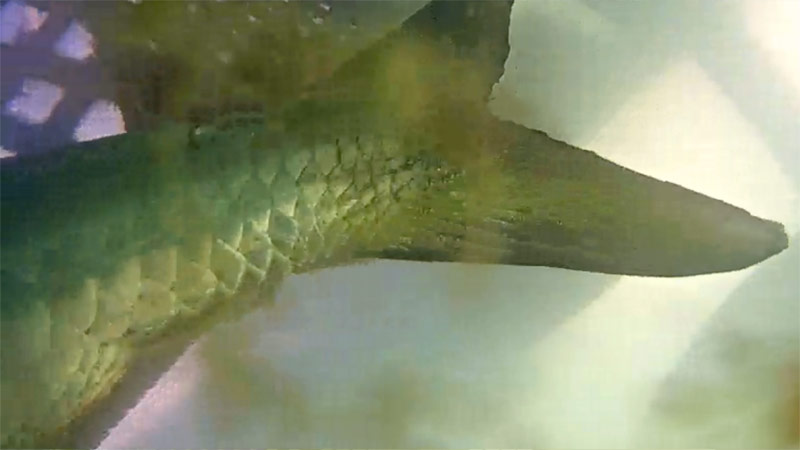
Robbie’s Underwater Tarpon Cam
Saltwater Angler
Schooner Wharf
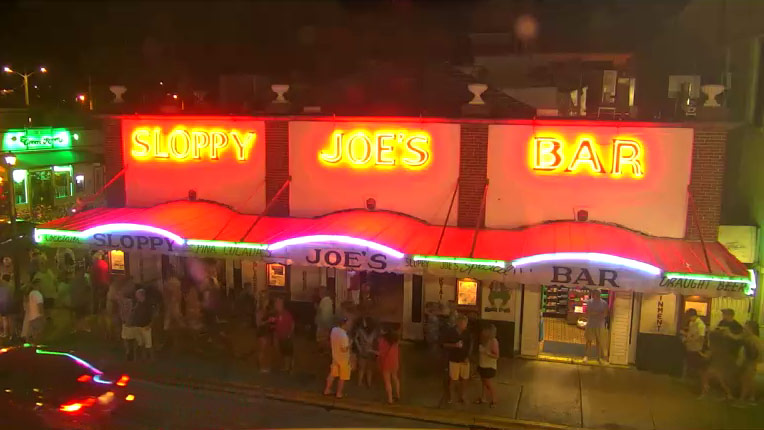
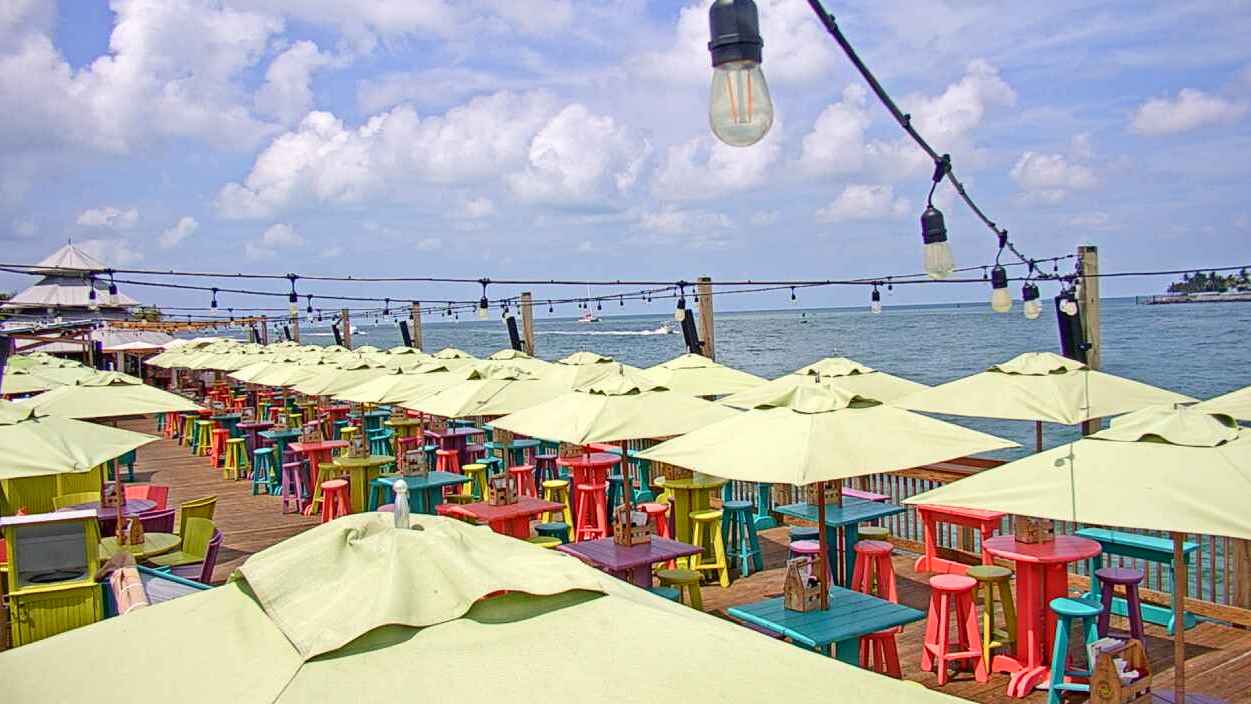
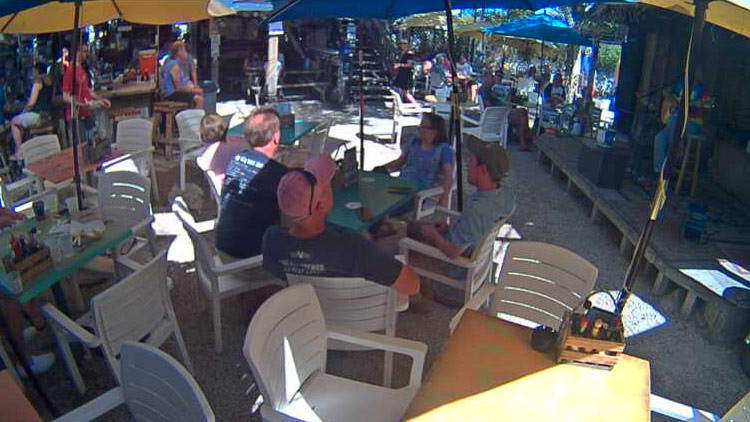
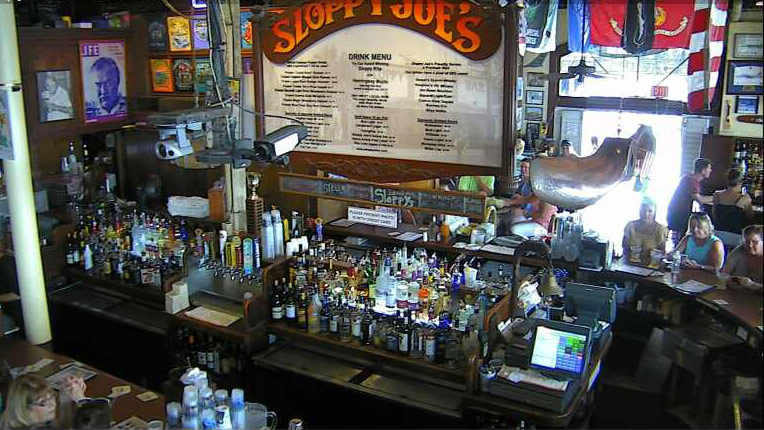
Sloppy Joe’s: Bar Cam
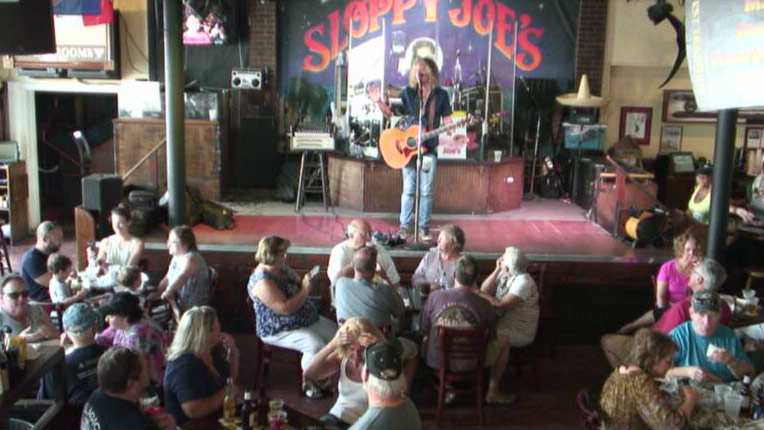
Sloppy Joe’s: Stage Cam
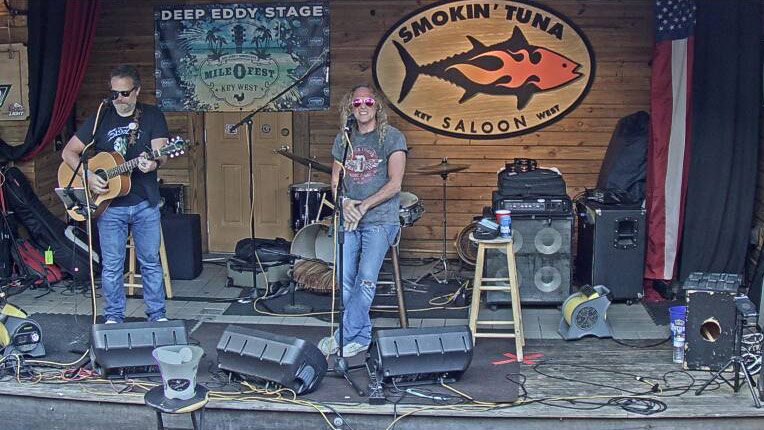
Smokin’ Tuna Saloon: Stage Cam
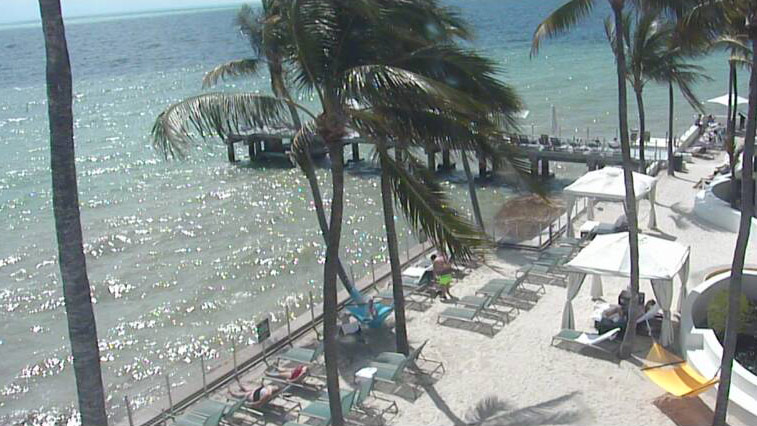
Southernmost Beach Resort: Pier Cam
Southernmost Beach Resort: Pineapple Bar Cam
Southernmost Beach Resort: Shores Bar Cam
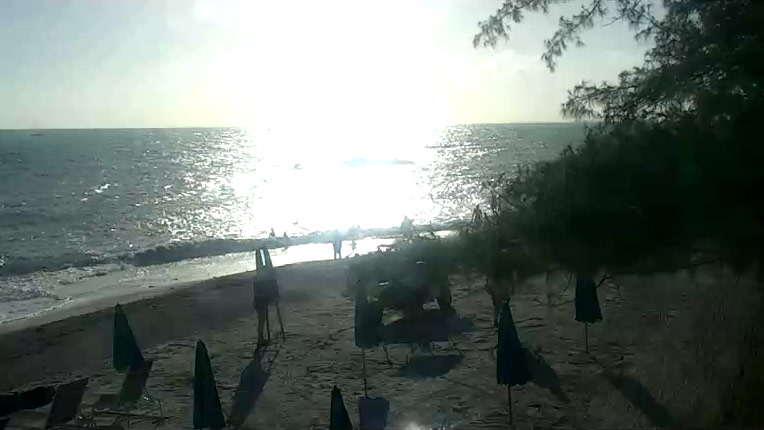
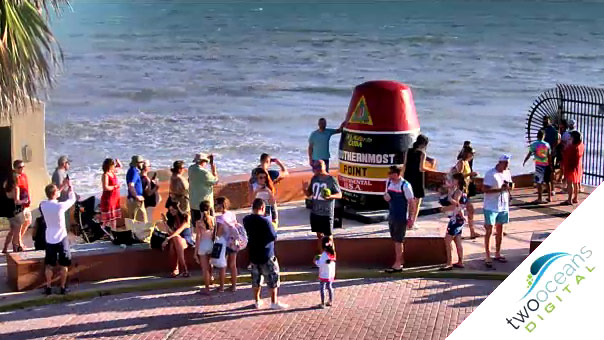
Southernmost Point Webcam
Tranquility Bay Beachfront Hotel & Resort
Featured Cam of the Day
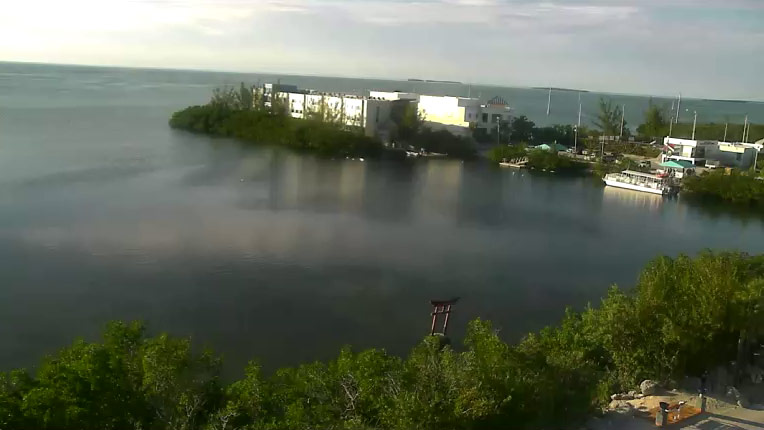
Lower Keys Cam
Visit our other sites
A Curio Collection by Hilton™, The Reach Key West
Beachside Resort & Residences
Boyd's Campground
Cheeca Lodge Resort
College of the Florida Keys
Dolphin Research Center
Dolphins Plus Bayside
Fort Zachary Taylor Historic State Park
Galleon Marina
Harborside Motel & Marina
Hawks Cay Resort
Hyatt Centric Key West Resort & Spa
Isla Bella Beach Resort
Isla Bella Beach Resort: Marina Cam
Isla Bella Beach Resort: Marina Underwater Cam
Islamorada Cam
Island 106.9: Live Streaming Audio
Island Dolphin Care
Key Largo Cam
Key Largo North: Anchorage
Key West Butterfly
Key West Cam
Key West Golf Club
Live Duval Street: Cam 1
Live Duval Street: Cam 2
Lower Keys Cam
Marker Resort
Mile Marker 0 - Vacation Homes of Key West
Ocean Key Resort: Bar Cam
Ocean Key Resort: Mallory Square
Ocean Key Resort: Pier Cam
Ocean Key Resort: Sunset Cam
Oceans Edge Key West Hotel & Marina
Robbie’s Tarpon Feeding Cam
Robbie’s Underwater Tarpon Cam
Saltwater Angler
Schooner Wharf
Sloppy Joe’s: Bar Cam
Sloppy Joe’s: Stage Cam
Smokin’ Tuna Saloon: Stage Cam
Southernmost Beach Resort: Pier Cam
Southernmost Beach Resort: Pineapple Bar Cam
Southernmost Beach Resort: Shores Bar Cam
Southernmost Point Webcam
Tranquility Bay Beachfront Hotel & Resort